GPT Image 2 Prompt Guide: How to Write Prompts That Produce More Reliable Images
This guide shows how to write more reliable GPT Image 2 prompts by turning vague ideas into clear visual briefs, with reusable structures for generation, editing, text, and composition.
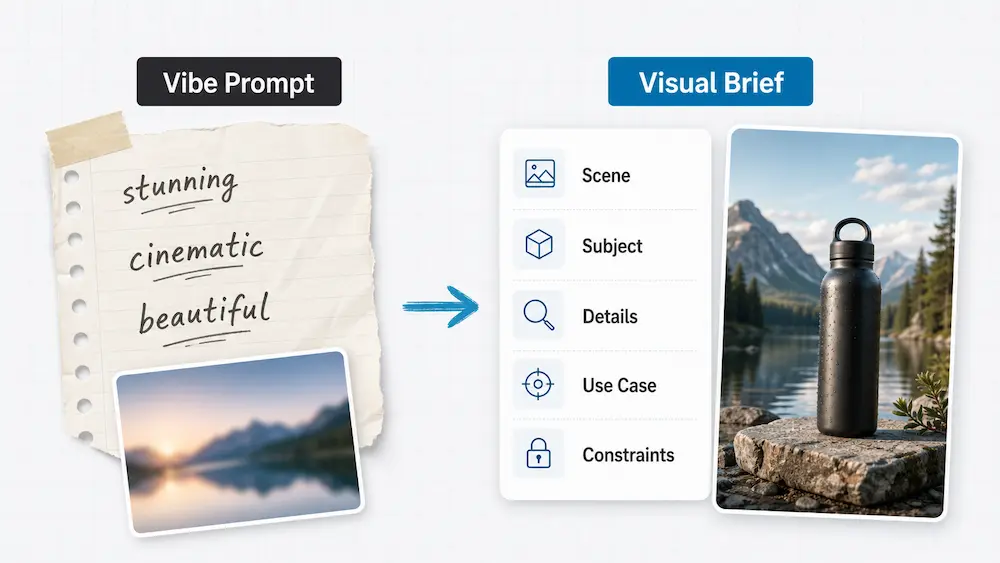
Most weak GPT Image 2 prompts fail for a simple reason: they describe a feeling instead of describing an image.
You ask for a "stunning, cinematic, ultra-detailed product photo," and the result might look polished, but the bottle is the wrong shape, the label text drifts, the background gets cluttered, or the model adds a second object you never requested. You ask for a small edit, and suddenly the face changes, the lighting shifts, and the whole image feels like a different shot.
The fix is not to write longer prompts. It is to write clearer visual briefs.
A good GPT Image 2 prompt tells the model what is in the frame, how the subject is arranged, which details matter, what the finished asset is for, and what must not change. This guide gives you a practical structure you can reuse for text-to-image generation, image editing, multi-image composition, posters, product photography, UI mockups, diagrams, and character consistency.
The core idea is simple: write less like a spell, more like a photographer, designer, or art director giving production notes.
What Makes a Good GPT Image 2 Prompt?
A good GPT Image 2 prompt is not the one with the most dramatic adjectives. It is the one with the fewest hidden assumptions.
When you write a prompt, the model has to infer several things at once:
What is the scene?
Who or what is the main subject?
What details must appear?
How should the image be composed?
What type of finished output do you want?
What should not appear or change?
If you leave those decisions open, the model will still make them. It may choose well, but it may also invent props, alter faces, simplify text, change layout, or make the image feel generic.
That is why strong prompts usually contain concrete visual facts. Instead of saying "premium," describe the evidence of premium: a single serum bottle on black marble, hard directional light from the upper right, a thin white serif label, a clean contact shadow, no props, no watermark, no extra text.
Instead of saying "cozy," describe the scene that creates coziness: a small kitchen at 7 AM, warm light through linen curtains, a ceramic mug with a chipped rim, steam rising from coffee, a wool cardigan sleeve visible at the edge of the frame.
The model can draw objects, materials, positions, light sources, typography, expressions, surfaces, and relationships. It cannot reliably draw your private meaning of "beautiful."
The Biggest Mistake: Writing Vibes Instead of Visual Facts
The most common mistake in GPT Image 2 prompting is treating style words as a substitute for direction.
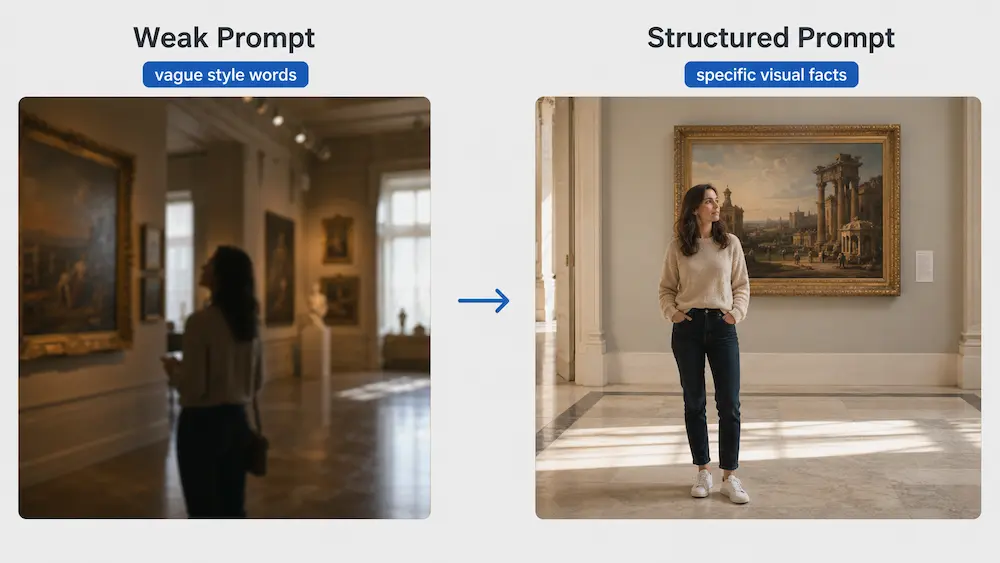
Here is a weak prompt:
A stunning cinematic masterpiece of a woman in a museum, ultra-detailed, beautiful, award-winning, photorealistic.
This sounds expressive, but it does not answer the practical questions an image model needs answered. What kind of museum? Where is the woman standing? What is she wearing? Is this a portrait, a full-body shot, an ad, an editorial photo, or a poster? Should there be other people? Should the painting be visible? What kind of lighting?
Now compare it with a stronger version:
Scene: A quiet classical museum gallery in soft afternoon light, with marble floors and large oil paintings on warm neutral walls. Subject: A woman in her 30s standing casually in front of one large painting, photographed at eye level in a full-body frame. Important details: Natural smile, realistic skin texture, beige knit sweater, dark jeans, white sneakers, soft marble floor reflections, shallow depth of field, believable indoor ambient light. Use case: Editorial lifestyle photograph for an article about weekend museum visits. Constraints: No watermark, no logos, no extra people in the foreground, no heavy retouching, no distorted hands.
The second prompt works better because it gives GPT Image 2 visual facts. It describes the room, the subject, the framing, the clothing, the light, the use case, and the guardrails.
This does not mean you can never use mood words. Mood is useful when it is supported by physical evidence. "Calm" becomes clearer when paired with negative space, soft daylight, muted colors, and a relaxed pose. "Energetic" becomes clearer when paired with diagonal composition, high contrast, motion blur on a specific object, and bold typography.
The rule is not "never use adjectives." The rule is: never let adjectives do the work that visual details should do.
The 5-Part GPT Image 2 Prompt Framework
The most reusable GPT Image 2 prompt structure is:
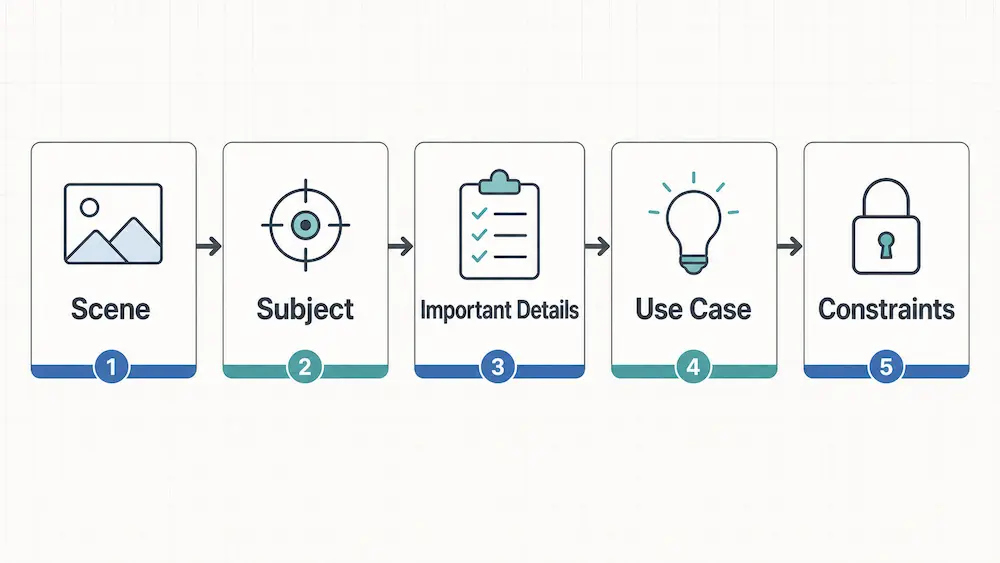
Scene -> Subject -> Important Details -> Use Case -> Constraints
You can write it as a paragraph, but line breaks make it easier to control and revise.
1. Scene
The scene defines where the image exists. Include location, time, background, weather, environment, and ambient light when relevant.
Weak:
A nice coffee shop.
Better:
A narrow neighborhood coffee shop at 8 AM, rainy street visible through the front window, warm tungsten pendant lights above a worn wooden counter.
Scene details anchor the image. They prevent the model from defaulting to a generic studio, generic street, or generic lifestyle background.
2. Subject
The subject is the main focus of the image. Be specific about identity, quantity, pose, scale, and relationship to other elements.
Weak:
A product on a table.
Better:
A matte white ceramic skincare bottle standing upright in the center of a black marble tabletop, label facing camera, cap slightly taller than the shoulder of the bottle.
If there are multiple subjects, define their relationship. "A designer showing a laptop to a client" is clearer than "people working together." "Two glass bottles side by side, the amber bottle on the left and the clear bottle on the right" is clearer than "some bottles."
3. Important Details
Important details are the facts that must survive generation. This is where you describe materials, lighting, camera angle, facial expression, clothing, surface wear, typography, object state, and composition.
Useful detail categories include:
Materials: brushed aluminum, matte ceramic, frosted glass, linen, wet asphalt
Light: overcast daylight, hard studio flash, tungsten lamp, neon sign glow
Camera and framing: eye-level, overhead flat lay, close-up macro, wide shot, 50mm documentary feel
Surface evidence: chipped paint, folded paper edge, condensation, fingerprints, dust, scuffs
Typography: bold uppercase sans serif, small white serif, centered lower third, left-aligned title block
The more production-critical the output is, the more important this slot becomes.
4. Use Case
The use case tells GPT Image 2 what kind of artifact you want. A prompt for a product photo should not behave like a movie still. A UI mockup should not behave like an abstract illustration. A social ad needs different composition than a square icon.
Examples:
Editorial photograph
E-commerce product photo
Square social media ad
Mobile app UI mockup
Event poster
Educational infographic
Character reference sheet
Brand style exploration
Use case affects composition, density, typography, and polish. "Poster" encourages layout. "Product photo" encourages object clarity. "Infographic" encourages hierarchy and labels.
5. Constraints
Constraints are the most neglected part of GPT Image 2 prompting. They tell the model where not to improvise.
Common constraints include:
No watermark
No logos
No extra text
No extra people
Keep the original face unchanged
Preserve the layout
Preserve the product shape
Do not change the background
Render the quoted text exactly, with no duplicate words
For image editing, constraints are not optional. If you ask the model to change a jacket color but do not say what to preserve, it may also change the face, hair, pose, lighting, or background. The preserve list keeps the edit scoped.
A Simple GPT Image 2 Prompt Template You Can Reuse
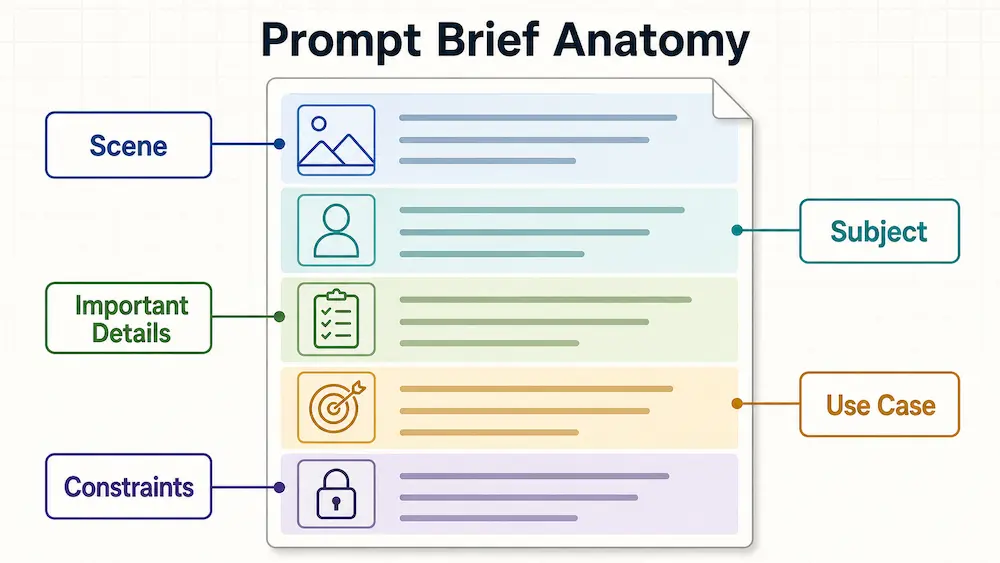
Use this as your default starting point:
Scene: [Where does the image take place? Include time, environment, background, and light.] Subject: [Who or what is the main focus? Include quantity, pose, position, scale, and relationships.] Important details: [Materials, textures, clothing, expression, camera angle, composition, typography, lighting, object state.] Use case: [Product photo, poster, UI mockup, infographic, editorial image, social ad, character sheet, etc.] Constraints: [What should not appear? What must stay unchanged? What text must be exact?]
This template is not meant to make your prompts stiff. It is meant to stop you from forgetting the control variables that matter.
Here is a weak prompt turned into a structured prompt:
Weak:
Make a premium ad for a water bottle, realistic, cinematic, beautiful.
Structured:
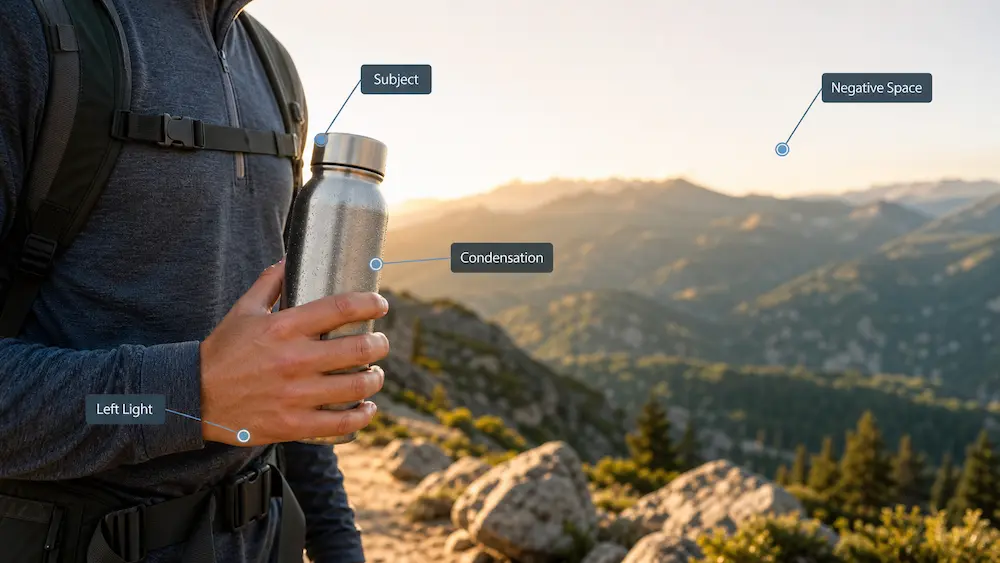
Scene: A rocky mountain trail at golden hour, distant green valley in the background, warm sunlight from the left. Subject: A stainless steel water bottle held naturally in one hand by a hiker, bottle label facing camera, the hiker visible from chest to waist only. Important details: Brushed metal texture, small droplets of condensation on the bottle, realistic hand grip, soft rim light on the bottle edge, shallow background blur, clean negative space in the upper right for headline text. Use case: Square social media ad for an outdoor gear brand. Constraints: No watermark, no extra logos, no distorted fingers, no extra text unless specified, do not make the bottle oversized.
The stronger version gives the model a job. It also gives you a better way to revise. If the first result is too close-up, adjust the framing. If the bottle lacks condensation, revise that detail. If the background is too busy, tighten the constraint.
How to Write Prompts for Different GPT Image 2 Tasks
Not every image task needs the same prompt shape. A common reason prompts fail is that users mix generation, editing, and composition instructions in one vague paragraph.
Text-to-Image
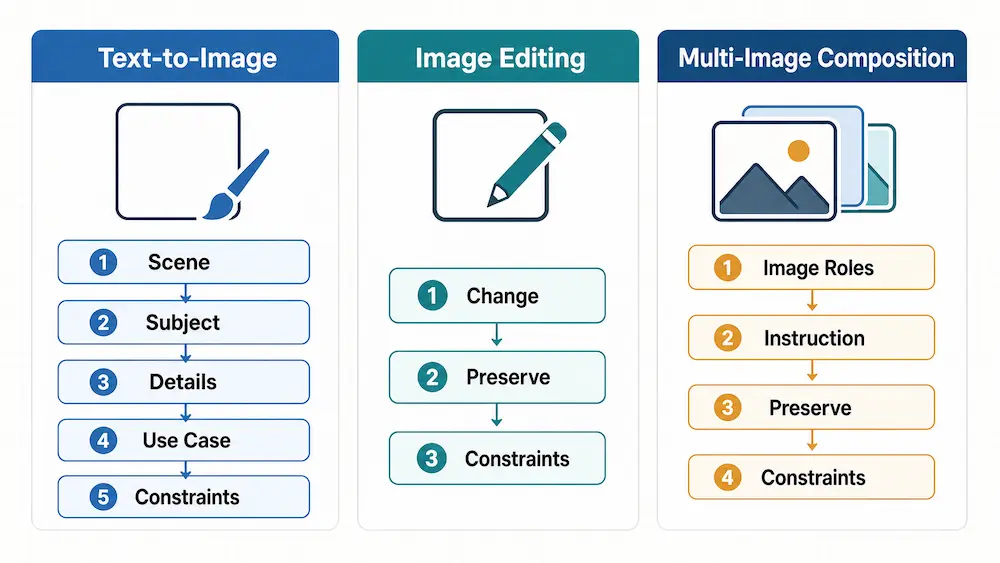
For images generated from scratch, use the five-part framework:
Scene -> Subject -> Important Details -> Use Case -> Constraints
Focus on composition, subject clarity, and output format. If you need text in the image, treat it as typography, not decoration. Specify the exact copy, placement, font style, size relationship, color, and whether extra text is forbidden.
Image Editing
For editing, use:
Change -> Preserve -> Constraints
Example:
Change: Replace the red jacket with a dark navy raincoat. Preserve: Keep the same person, face, hair, pose, body shape, camera angle, background, lighting direction, and image crop. Constraints: Do not add accessories, do not change the expression, do not alter the hands, no extra text.
The key is to separate what changes from what stays locked. Repeat the preserve list in every edit round. If you stop saying what must remain unchanged, the model has room to drift.
Multi-Image Composition
For multiple reference images, label each input by role:
Image 1: Base portrait to preserve. Image 2: Jacket reference, use only for jacket design and fabric texture. Image 3: Background reference, use only for environment and lighting mood. Instruction: Place the person from Image 1 into the environment from Image 3 while dressing them in the jacket from Image 2. Preserve: Keep the face, body shape, pose, and camera angle from Image 1. Constraints: Do not copy the person from Image 3, do not add extra accessories, match scale and lighting naturally.
Without roles, the model may confuse which image provides the subject, which provides style, and which provides the environment.
GPT Image 2 Prompt Examples by Use Case
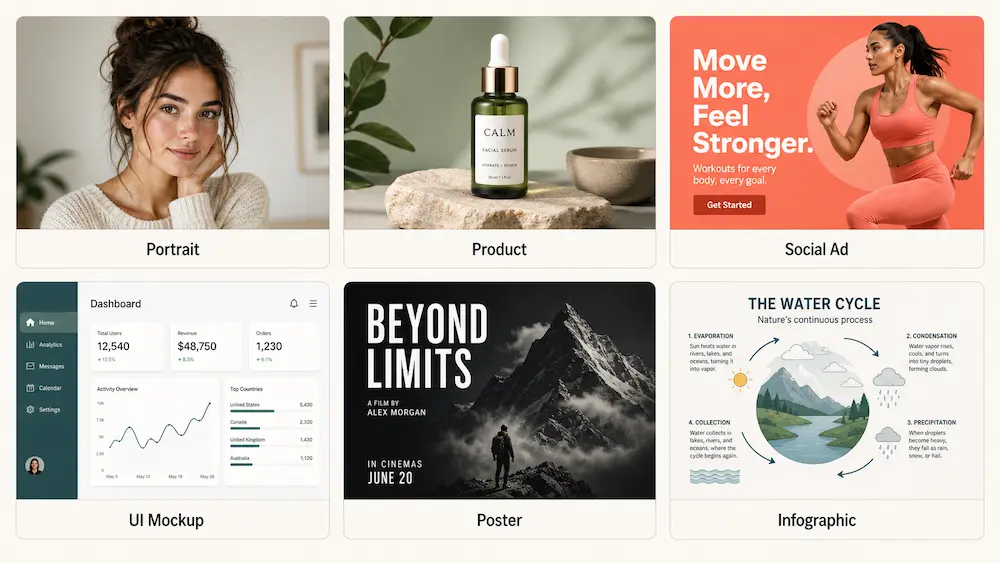
Use these examples as patterns, not magic strings. The important part is how each prompt defines visual facts and constraints.
Photorealistic Portrait
Scene: A small apartment kitchen on an overcast Sunday morning, soft gray daylight through a window, quiet background with a kettle and folded dish towel. Subject: A man in his early 40s sitting at a small table, looking slightly past the camera, hands wrapped around a ceramic mug. Important details: Natural skin texture, tired but calm expression, navy sweater, faint steam rising from the mug, 50mm documentary feel, shallow depth of field, muted colors, no glamour retouching. Use case: Editorial portrait for a personal essay. Constraints: No watermark, no extra people, no distorted hands, no dramatic cinematic grading.
Why it works: It describes expression, setting, wardrobe, light, camera feel, and what not to overdo.
Product Photography
Scene: Minimal studio tabletop with a deep charcoal background and a polished black marble surface. Subject: A clear glass serum bottle centered upright, label facing camera. Important details: Thin white serif label text reading "LUMA SERUM", transparent glass thickness visible at the edges, subtle liquid meniscus, hard directional light from upper right, sharp contact shadow to the left. Use case: Premium skincare product photograph for an e-commerce product page. Constraints: Render label text exactly, no extra props, no watermark, no additional text, keep bottle shape symmetrical.
Why it works: It specifies the object, label, light direction, surface, and commercial purpose.
Social Media Ad
Scene: Bright coral background with a clean studio floor curve, high contrast and minimal clutter. Subject: A single reusable iced coffee cup with a clear lid and stainless straw, centered slightly below the vertical midpoint. Important details: Large headline text "SIP COLDER" in bold white sans serif at the top, smaller text "ALL SUMMER" below it, cup shadow soft and realistic, condensation on the cup wall. Use case: Square Instagram ad for a drinkware brand. Constraints: Render the text exactly, no extra words, no watermark, no logo, no additional cups.
Why it works: It treats the ad as a layout, with subject placement and text hierarchy.
UI Mockup
Scene: Straight-on desktop web app screenshot inside a clean browser window. Subject: A project management dashboard called "Northstar" in light mode. Important details: Left sidebar with navigation items "Projects", "Timeline", "Reports", "Team"; main area with three kanban columns titled "Planned", "In Progress", "Review"; top header with search field and user avatar; muted white background, blue accent, compact spacing, readable sans serif typography. Use case: SaaS landing page product mockup. Constraints: Render all UI text exactly, no lorem ipsum, no fake brand logos, no blurry interface, no duplicated panels.
Why it works: UI prompts improve when you specify actual interface structure instead of asking for "a modern dashboard."
Poster With Readable Text
Scene: Dark event poster with a soft amber spotlight glow on a black background. Subject: Typography-led jazz night poster. Important details: Main title "MIDNIGHT SESSION" in large bold serif letters, centered in the upper third. Secondary line "EVERY FRIDAY · 9 PM · THE GRAND HALL" in smaller white serif text below. Small abstract saxophone silhouette near the bottom, lots of negative space, clean kerning. Use case: Vertical event poster. Constraints: Render all quoted text exactly, no extra words, no duplicated title, no watermark, no logos.
Why it works: It gives the model exact copy, hierarchy, placement, and duplication rules.
Infographic or Diagram
Scene: Clean white educational infographic canvas with a horizontal five-step flow. Subject: Diagram titled "How Solar Panels Work". Important details: Five labeled steps with simple flat icons: "1 Sunlight", "2 Panel Absorption", "3 Inverter Conversion", "4 Home Power", "5 Grid Export". Thin gray arrows between steps, blue and yellow accent colors, consistent icon style, readable sans serif labels. Use case: Educational infographic for a beginner article. Constraints: Render text exactly, no extra steps, no crowded layout, no watermark, no decorative background.
Why it works: It gives the diagram a schema: title, number of steps, labels, order, and visual hierarchy.
Character Consistency
Scene: Character reference sheet on a plain warm gray background. Subject: The same young explorer character shown in three poses: front view standing, side view walking, and three-quarter view holding a map. Important details: Short black curly hair, round brass glasses, green field jacket with two chest pockets, red scarf, tan backpack, brown boots, curious expression, same face shape and proportions in all poses, clean storybook illustration style. Use case: Character consistency reference for an illustrated adventure series. Constraints: Keep the same character identity across all poses, no extra characters, no costume changes between poses, no text, no watermark.
Why it works: It repeats identity anchors: hair, glasses, jacket, scarf, backpack, boots, face shape, and style.
Style Transfer
Scene: Use the base product photo composition unchanged. Subject: The same sneaker from the input image. Important details: Apply the color palette, paper texture, flat shadows, and bold edge treatment of the reference poster style. Keep the sneaker geometry, logo-free surface, laces, sole shape, and angle identical. Use case: Stylized campaign concept image. Constraints: Do not change the sneaker design, do not add text, do not add background objects, preserve the original crop and subject scale.
Why it works: Style is broken into transferable parts: palette, texture, shadow, and edge treatment.
How to Improve a Weak GPT Image 2 Prompt
When a prompt fails, do not rewrite everything at once. Diagnose the missing control variable.
Use this five-step improvement process:
Remove vague quality words. If the prompt leans on "beautiful," "premium," "epic," or "cinematic," replace those words with visible evidence.
Add subject and relationship clarity. Define the main subject, number of subjects, position in frame, pose, and relationship to other objects.
Specify composition, light, and material. Add camera angle, crop, light source, surface texture, colors, and object state.
Add preserve and forbidden constraints. Say what must not appear, what text must be exact, and what should remain unchanged during edits.
Iterate one variable at a time. Change lighting in one revision, text in another, background in another. Large bundled edits make it harder to know what caused the result to improve or fail.
For example, if this prompt is too weak:
Create a modern poster for a tech event.
Upgrade it like this:
Scene: Vertical poster on a dark graphite background with a subtle geometric grid. Subject: Typography-led conference poster for a fictional event. Important details: Main title "BUILD 2026" in oversized white bold sans serif, left-aligned in the upper third. Secondary line "MAY 12-14 · SAN FRANCISCO" below in smaller regular weight. Small cyan line accents around the title, clean spacing, high contrast. Use case: Digital event poster for a tech conference. Constraints: Render text exactly, no extra words, no watermark, no logos, no blurry typography.
Now the model knows the artifact, copy, layout, hierarchy, and boundaries.
Common GPT Image 2 Prompting Mistakes
Asking for Style Without Describing Visual Evidence
"Luxury," "minimalist," and "cinematic" are not enough. Describe the palette, materials, spacing, shadows, typography, and composition that create the style.
Forgetting Text Layout
If you need readable text, write the exact words in quotation marks and specify placement, font style, weight, color, hierarchy, and whether extra text is forbidden.
Editing Too Many Things at Once
When you ask for five changes in one edit, you increase the chance of drift. Make one meaningful change per round.
Not Saying What Should Stay Unchanged
For edits, always include a preserve list. Preserve face, pose, crop, background, product geometry, lighting direction, typography, or whatever matters.
Mixing Multiple Tasks in One Prompt
Text-to-image, image editing, and multi-image composition need different prompt structures. Name the task before writing the instruction.
Reusing Templates Without Adapting Them
Templates prevent omissions, but they do not replace judgment. A product photo prompt needs different details than an infographic prompt. A poster prompt needs text hierarchy. A character prompt needs identity anchors.
FAQ: GPT Image 2 Prompts
What is the best prompt structure for GPT Image 2?
A reliable structure is: Scene, Subject, Important Details, Use Case, and Constraints. This works because it covers the image context, focal point, must-have details, intended output, and boundaries.
How do I get better text in GPT Image 2 images?
Treat text like typography. Put the exact copy in quotation marks, specify font style, weight, color, placement, and hierarchy, then add constraints such as "render text exactly," "no extra words," and "no duplicated title." For complex layouts, break the text into lines or sections.
How do I stop GPT Image 2 from changing the original image?
Use a clear edit prompt with Change, Preserve, and Constraints. State the one thing that should change, then list everything that must remain identical: face, pose, body shape, camera angle, crop, background, lighting, text, layout, and object geometry.
Should I use quality words like ultra-detailed?
Quality words can sometimes help signal polish, but they should not replace visual facts. "Ultra-detailed" is weaker than "visible glass thickness, crisp white label text, hard shadow from upper-right light, subtle fingerprints on the bottle."
How long should a GPT Image 2 prompt be?
Long enough to remove ambiguity, short enough to avoid conflicting instructions. A simple image may only need one paragraph. A poster, UI screen, infographic, or edit may need structured sections. Clarity matters more than word count.
Can I reuse the same prompt template for every image?
You can reuse the same framework, but not the same details. The five-part structure is a checklist. The content should change based on the task, medium, subject, and output goal.
Final Takeaway: Write a Brief, Not a Spell
The real skill in GPT Image 2 prompting is not finding magic words. It is learning to describe the image as a production brief.
Less vibe. More facts.
Less "make it premium." More "single centered bottle on black marble, thin serif label, hard light from upper right, no props."
Less "make this edit better." More "change only the jacket color, preserve the face, pose, hands, background, lighting direction, and crop."
Before your next GPT Image 2 prompt, fill five slots: scene, subject, important details, use case, and constraints. If the image is an edit, add a preserve list. If the image contains text, specify typography and exact copy. If the result is close but wrong, revise one variable at a time.
That is the difference between prompting and briefing. And for GPT Image 2, briefing is where the control starts.
Start Creating with GPT-image 2 on Editpal
Ready to turn better prompts into finished visuals? Start creating with GPT-image 2 on Editpal and move from brief to image in a focused editing workflow.