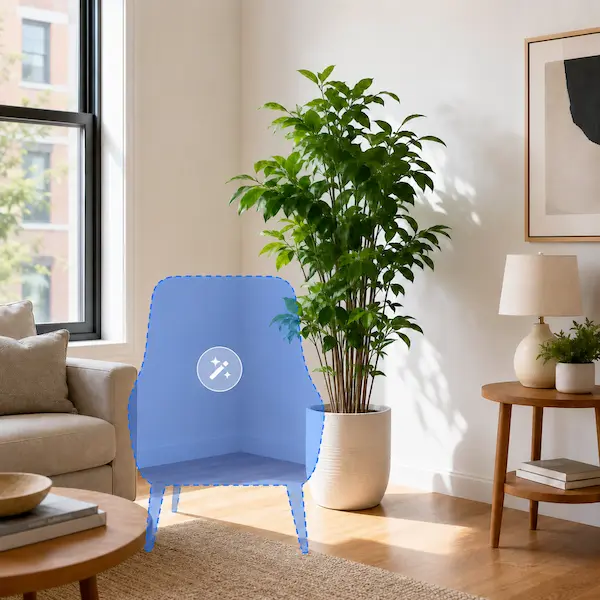
AI Generative Fill
AI Generative Fill lets you paint over a selected area, describe the edit, and turn that part of your image into something new. Replace objects, add details, or refine a scene without rebuilding the whole picture.
Replace only the area you select
Want a chair changed into a plant, a plain tabletop filled with props, or a distracting detail turned into a better fit? Paint over that part of the photo and tell Editpal what should appear there. AI Generative Fill focuses on the marked area so you can explore a new idea while keeping the rest of the composition familiar.
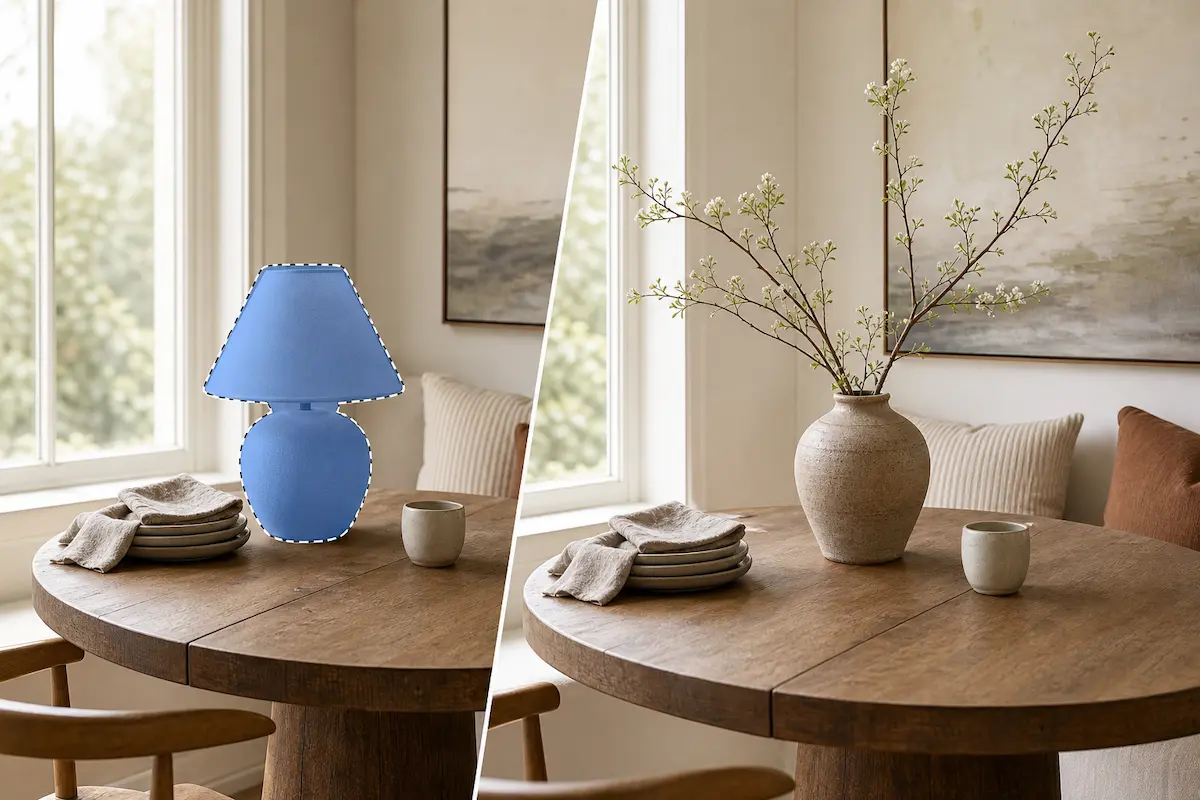
Add missing details with a text prompt
Some images need one more object, a richer background detail, or a small visual cue that helps the scene make sense. Use the brush to mark where it belongs, then describe the result in plain words. Editpal generates new content for that space, helping your photo move from almost right to ready to use.
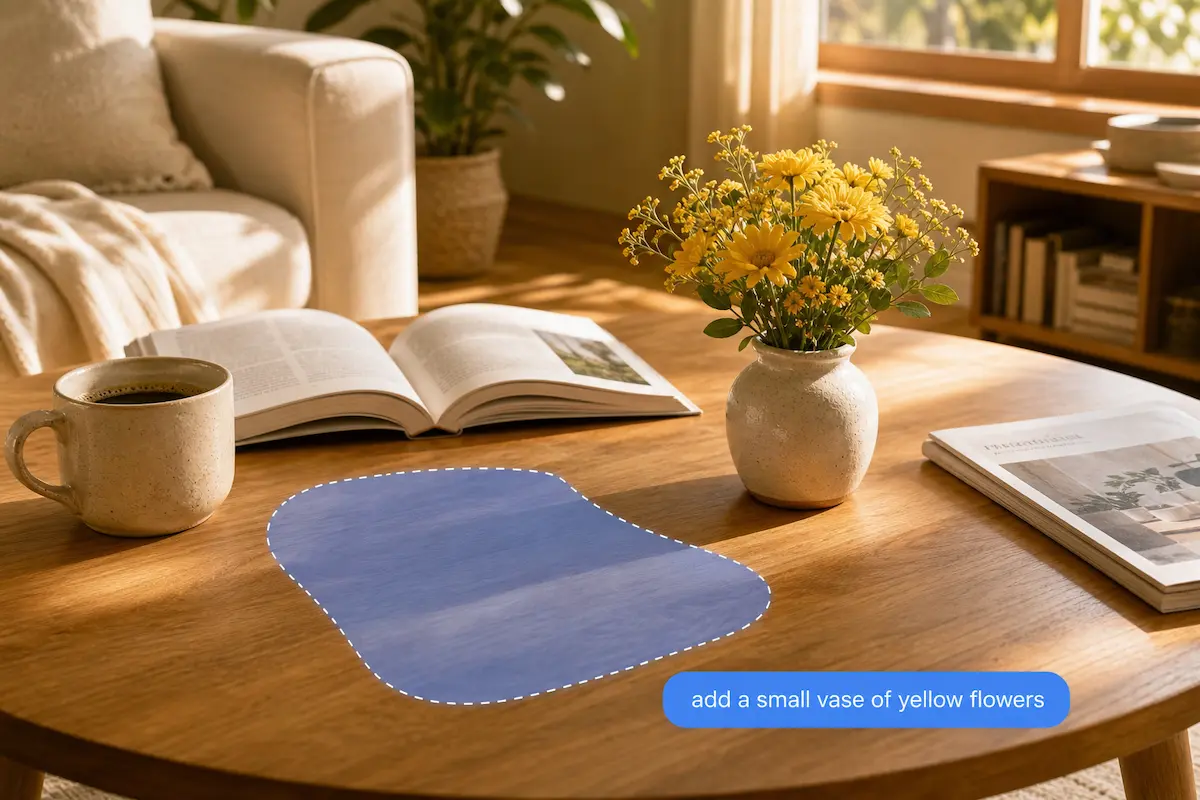
Create product and marketing variations faster
When one visual needs to support a product listing, a social post, and a campaign concept, starting over costs time. Generative fill helps you test local changes such as props, scenery details, or styled surfaces from the same base image. You can compare ideas faster and keep attention on the subject that matters.
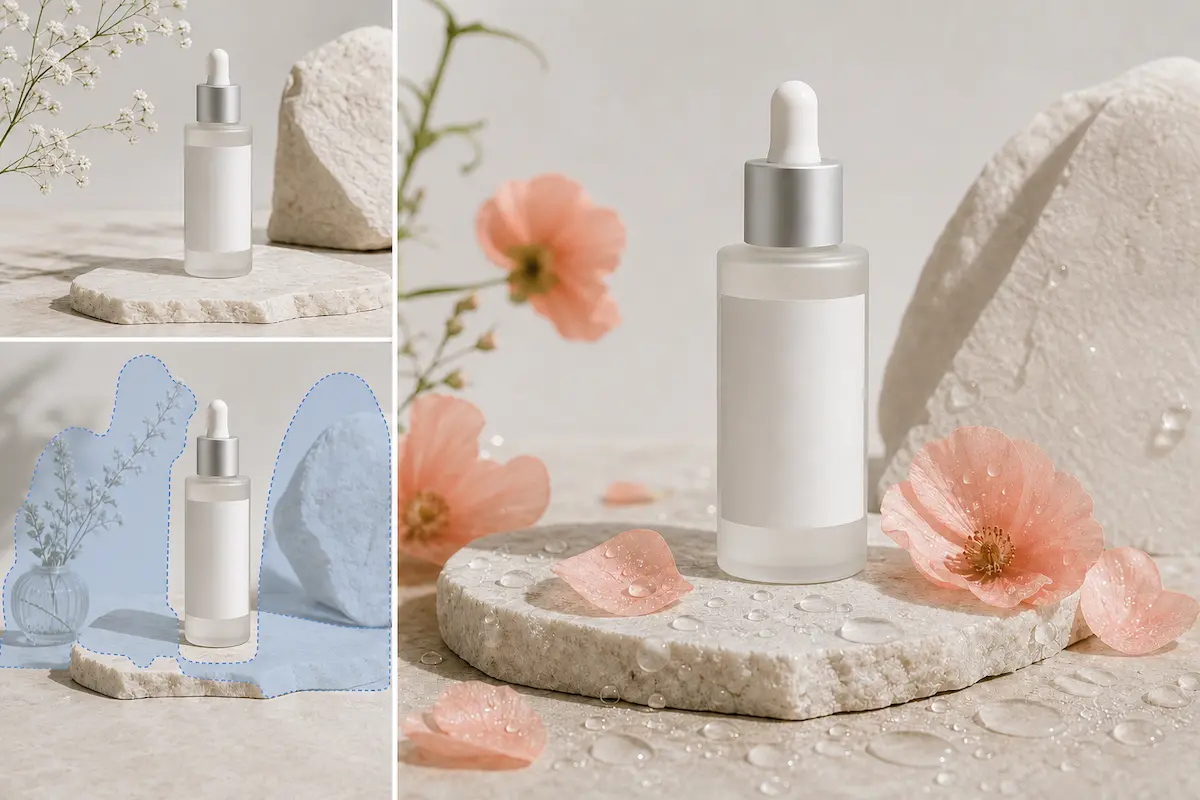
Edit backgrounds without losing your main idea
Backgrounds shape the mood of a photo, but they often need a targeted change instead of a full replacement. Brush over the sky, a wall detail, a corner of the scene, or another area you want to adjust. The AI fills that selected region from your prompt so your image can fit the story you want to tell.
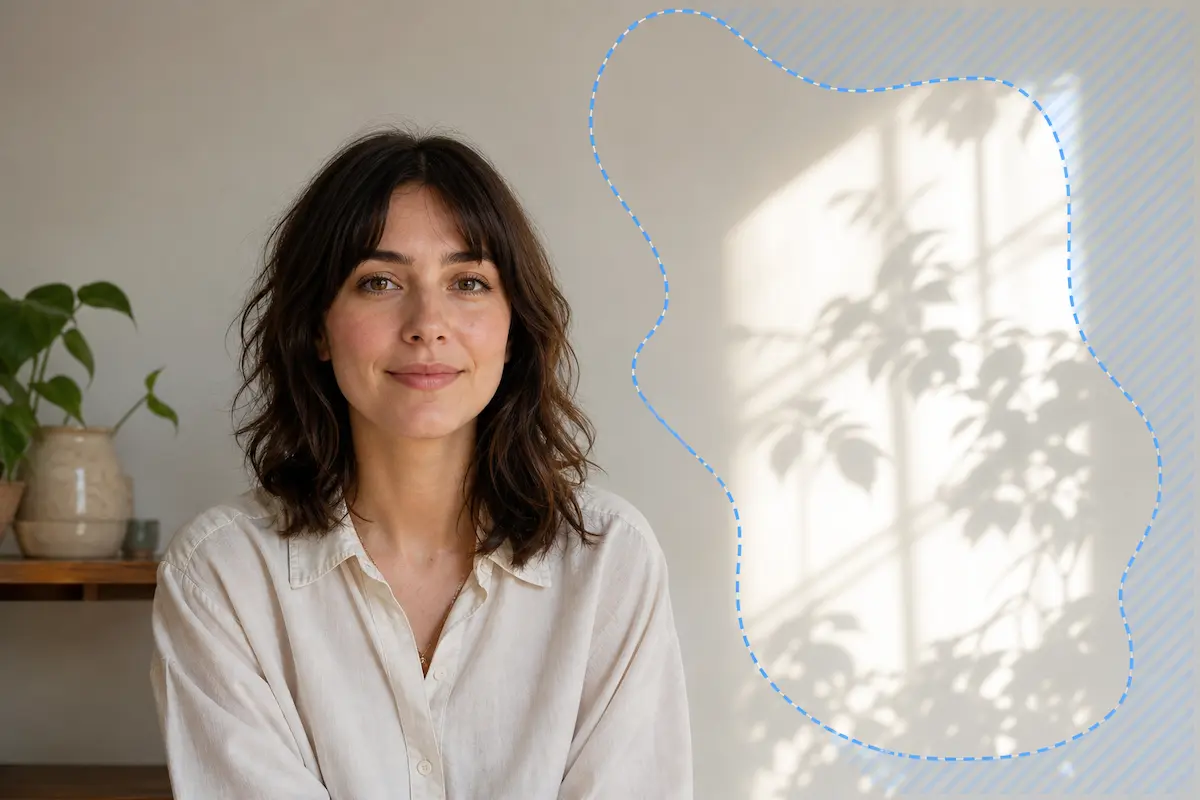
A clear way to make local AI edits
You don't need to manage layers or learn a long editing workflow to change part of an image. Upload your photo, paint the region that needs attention, and write the change you want to see. The same selected-area approach behind AI image inpainting becomes a simple browser workflow for creators who want control without extra friction.
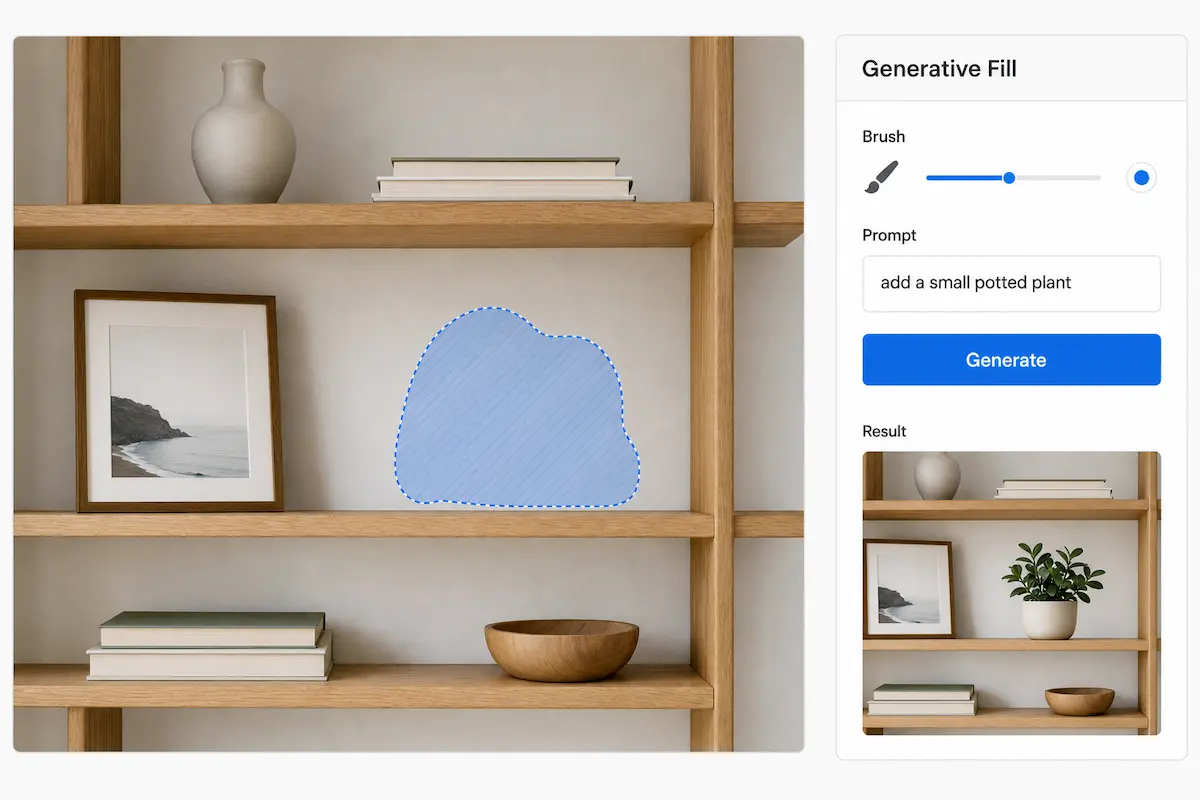
How to Use AI Generative Fill
1
Upload the image you want to edit
Start with the photo, product image, or creative visual you already have. Your image opens in the inpainting editor so you can focus on the part that needs a new look.
2
Paint over the area to change
Brush over the object or region you want AI to edit. This selection tells Editpal where to generate new content and helps keep your change targeted.
3
Describe the result and generate
Write a clear prompt for what should fill the selected area, then generate your edit. Review the result, refine your selection or prompt if needed, and download the image when it fits your idea.
Frequently asked questions
AI Generative Fill is a way to edit a selected part of an image with artificial intelligence. You mark the area you want to change, describe what should appear there, and the AI creates new content for that region.
Upload your image, paint over the part you want to replace, and enter a prompt that describes the new content. Editpal uses that selected area and your prompt to create a targeted image edit.
They describe closely related ideas. AI image inpainting is the technical term for generating content inside a masked or selected area, while Generative Fill is the user-friendly feature name many image editors use for that workflow.
Use it to add an object, replace a visual detail, adjust part of a background, create product photo variations, or refine a creative image without starting from scratch.
Generative Fill is designed for local edits based on the area you paint. For the best control, mark the region you want to change carefully and review the result before downloading.
Use Generative Fill when you want a selected area replaced or filled with something you describe. If your only goal is to remove an unwanted object and rebuild the background, an object remover or Magic Eraser workflow may be the better fit.
Yes. It can help you test local changes around a product image, such as props, scene details, or background areas. Keep your selection focused on the region you want to edit when the main product needs to stay visually consistent.
Describe what should appear in the selected area with concrete words, such as the object, material, color, setting, or mood you want. A focused prompt works best when it matches the area you painted.
Yes. Editpal lets you open the inpainting editor in your browser, upload an image, paint the area to edit, and generate the change from a text prompt.
Turn one selected area into a better image
You already know what part of the picture needs to change. Paint it, describe it, and use AI Generative Fill to build the edit online with Editpal.