Uncrop & AI Expand Image
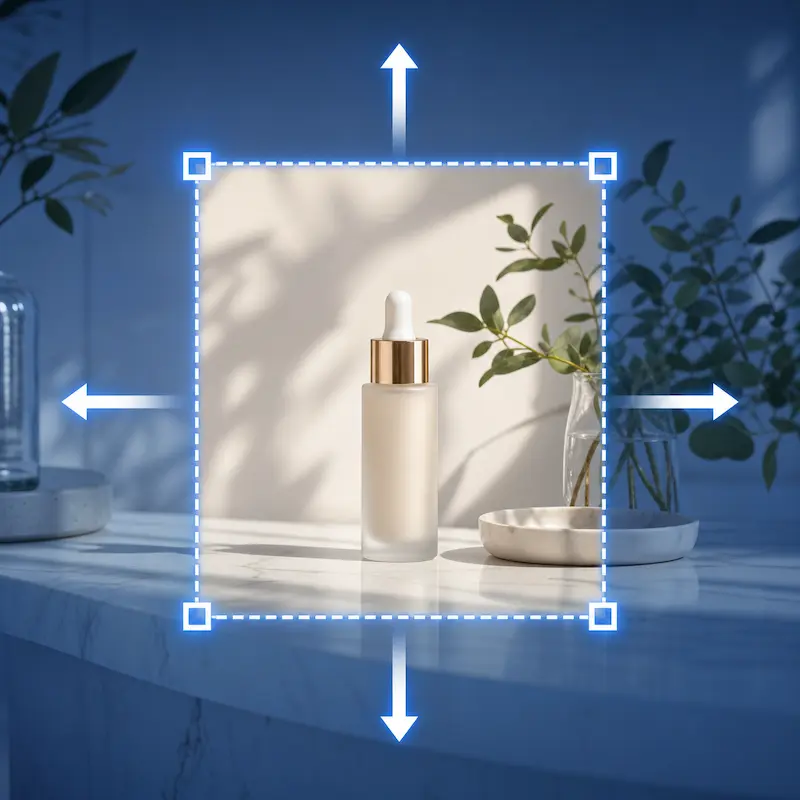
Use Editpal's AI image extender to expand an image beyond the frame. Add natural background, change image aspect ratio, and create more room for social posts, product photos, banners, thumbnails, and designs without stretching your subject.
Uncrop photos without stretching
A normal resize only scales the pixels you already have. Cropping cuts parts of the image away. Editpal uses AI outpainting to generate new pixels around your original photo, so you can make an image wider, taller, or more balanced while keeping the main subject intact.
Change image aspect ratio for every layout
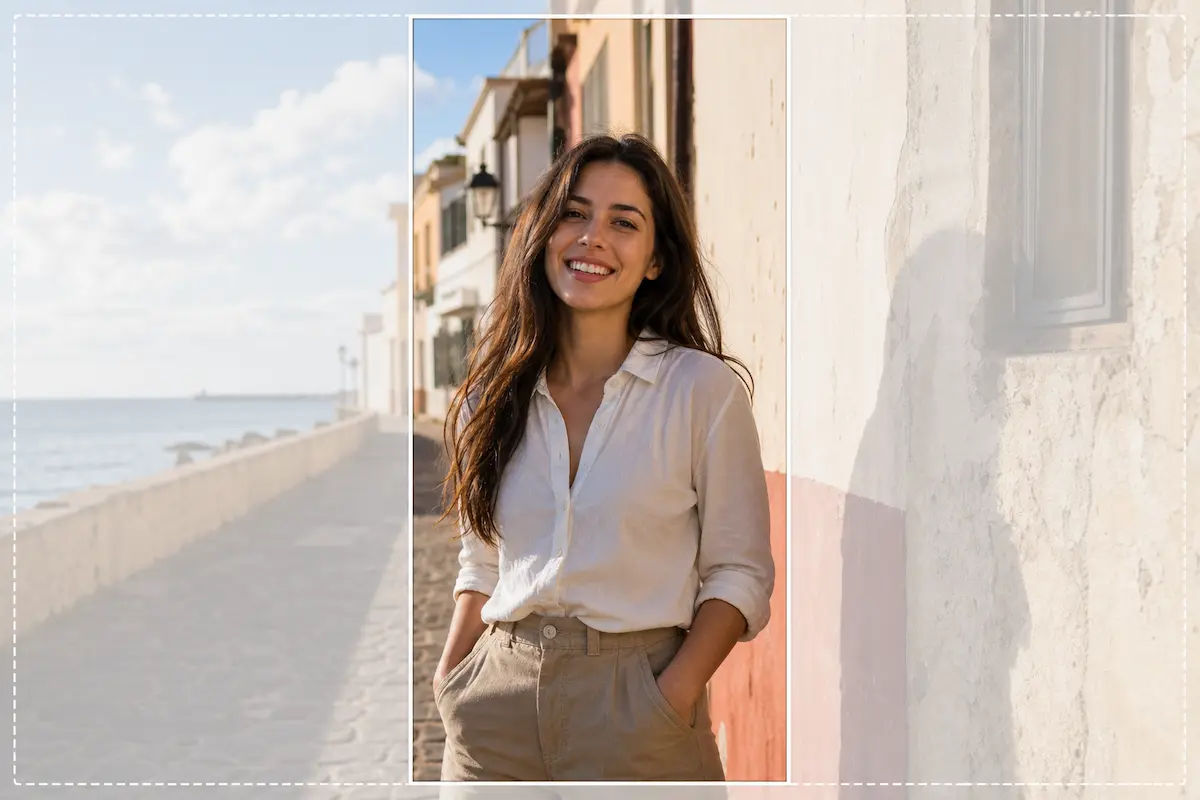
Turn one photo into a square post, a vertical story, a 16:9 thumbnail, or a wide website hero without forcing a bad crop. The AI image expander fills the missing edges so your image can fit Instagram, TikTok, YouTube, presentations, ads, and web layouts with less manual editing.
Expand product image backgrounds
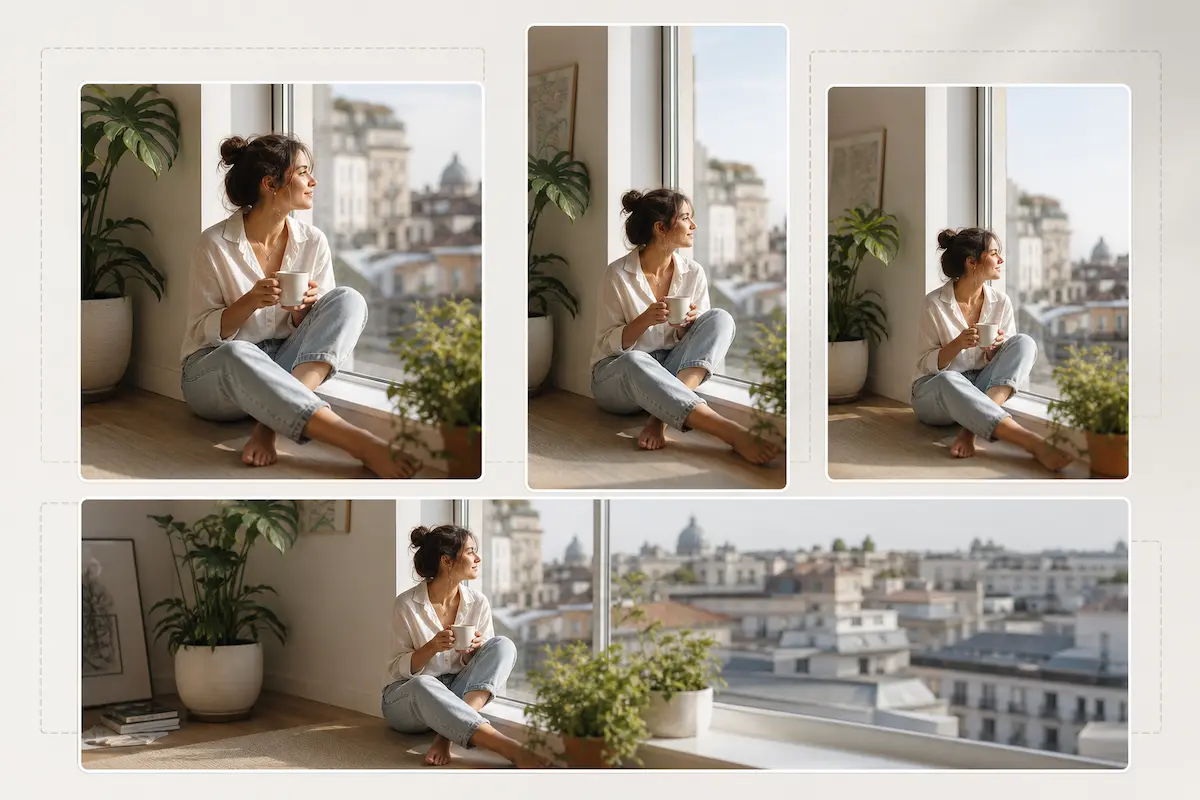
Product photos often need extra clean space for marketplace crops, store banners, promotional text, or ad creative. Upload your product image and extend the image background around it, giving the layout more breathing room while keeping the product as the focal point.
Add space for text, logos, and design elements
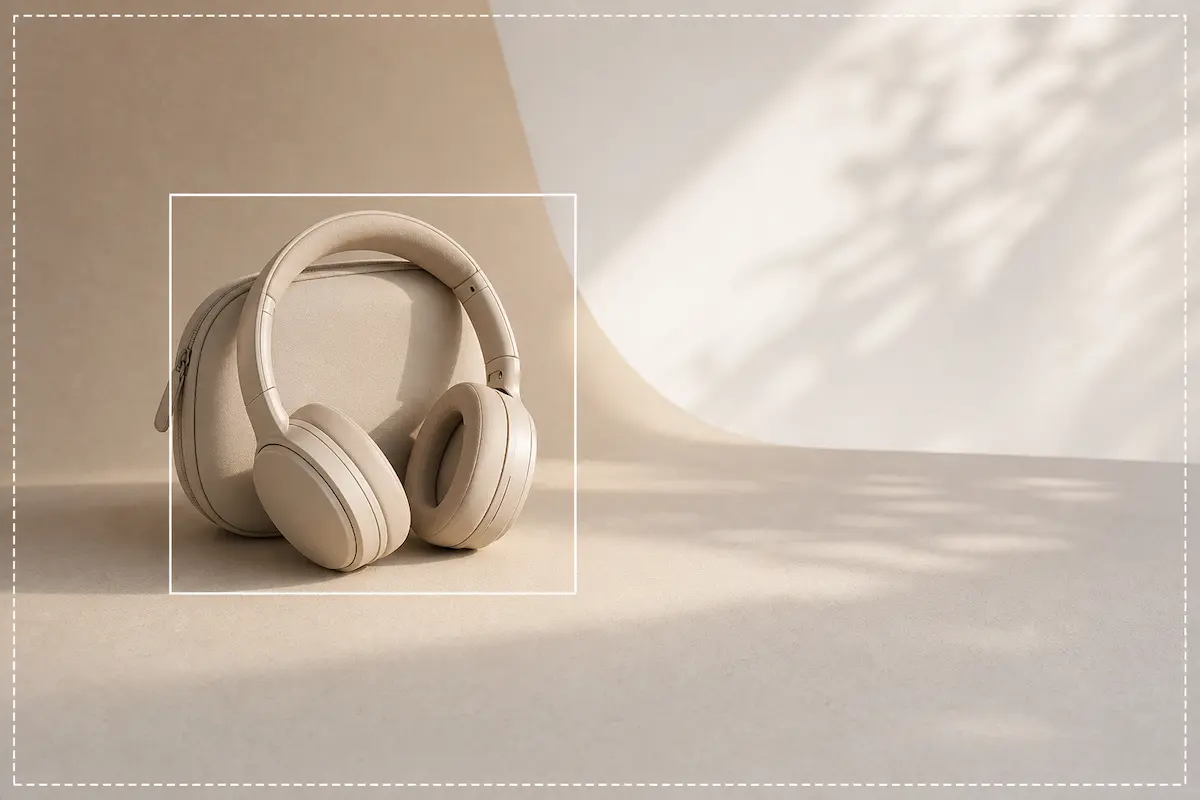
When a great image is framed too tightly, it can be hard to add a headline, logo, price, CTA, or caption. Use generative expand to create negative space on the side, top, or bottom of a photo, then build cleaner posters, banners, thumbnails, and marketing visuals from the same image.
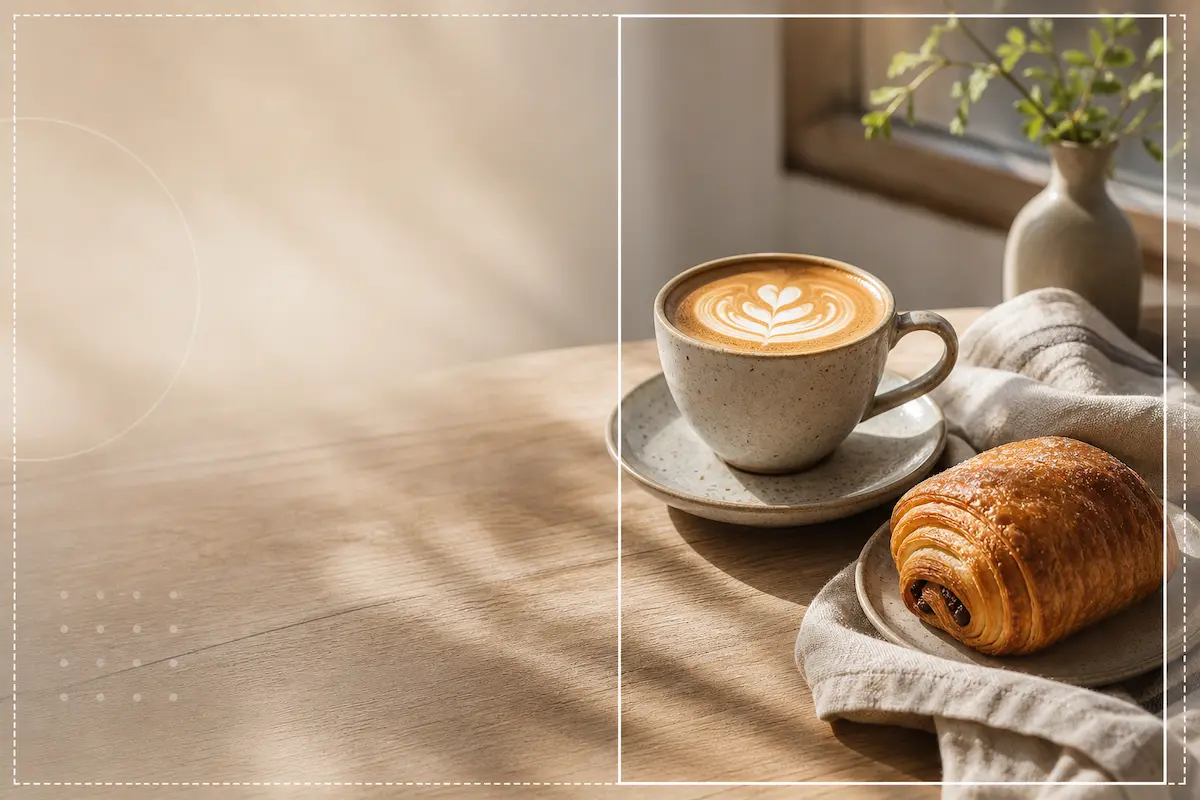
A simple AI image extender for tight crops
Recover awkward framing, fix cut-off edges, and adapt old photos without opening a heavy desktop editor. Editpal gives you a direct online workflow: upload your image, choose how you want to expand it, generate the missing background, and refine the result when the first version needs another try.
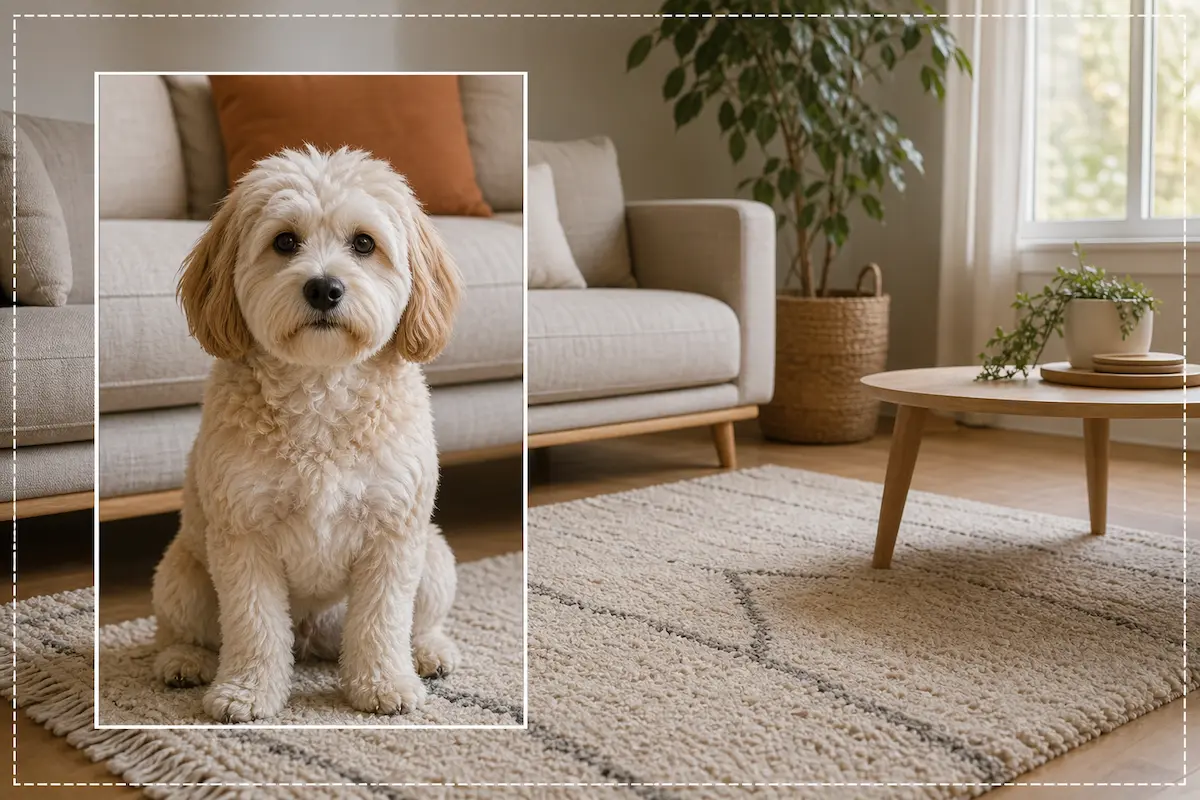
How to extend an image with AI
1
Upload the image you want to uncrop
Start with a JPG, PNG, WebP, or other common photo format. Portraits, product images, landscapes, lifestyle shots, and graphics with visible background near the edges usually give the AI more context to continue the scene.
2
Choose a new size, ratio, or direction
Expand the canvas where you need more room. Make the image wider for a banner, taller for a vertical post, square for a feed layout, or add space on one side for copy and design elements.
3
Generate and download the expanded image
Editpal creates new background around the original image instead of stretching it. Review the result, regenerate if needed, and download the expanded image when the composition fits your project.
Frequently asked questions
An AI image extender is a tool that expands an image beyond its original borders. Instead of stretching the existing pixels, it uses AI to generate new visual content around the photo so the extended background can match the original scene.
To uncrop an image means to add back visual space around a tightly cropped photo. AI cannot know the exact original photo that was outside the frame, but it can generate a natural-looking extension based on the visible edges, colors, lighting, texture, and context.
Cropping removes image area. Resizing makes the current image larger or smaller. AI uncrop expands the canvas and fills the new empty space with generated pixels, which helps you change aspect ratio without cutting off the subject or making the photo look stretched.
Yes. Use the image extender when you need more room on the left, right, top, bottom, or around the whole photo. One-side expansion is useful for creating text space, fixing a cut-off edge, or turning a tight portrait into a wider layout.
You can use AI image expansion to prepare common layout shapes such as square posts, vertical 9:16 content, 4:5 social images, 16:9 thumbnails, wide banners, and custom compositions. The best ratio depends on where you plan to publish the image.
Yes. AI image extension is useful for ecommerce images, product banners, marketplace listings, ads, and social posts. It can add background or clean negative space around the product so the image fits more placements without reshooting.
Images with clear background context near the edges usually work best. Simple walls, skies, landscapes, tables, floors, product backdrops, and soft textures are easier to extend than complex hands, faces, text, logos, transparent edges, or very large missing areas.
AI image extenders can create strong results, but some images may need another generation. Moderate expansions usually look more natural than extreme expansions. If the result feels off, try expanding less, changing the direction, or using an image with more edge context.
They describe the same kind of workflow. Generative expand and AI outpainting both refer to extending an image beyond its original borders by generating new content that follows the visible scene.
Keep the original subject away from the very edge when possible, start with a clear source image, avoid extreme ratio changes in one attempt, and regenerate when the first result does not match the scene. Expanding in smaller steps can help with difficult photos.
Give your image the space it needed
Upload a tight crop, expand the background with AI, and turn one photo into a better fit for posts, banners, thumbnails, product layouts, and design work.